So you have a KVM host that have one ore more KVM guests (such as Windows, Linux, Android, you name it) and one KVM guest is a Windows system that have a SQL Server (doesn't matter which edition). You want to be able to connect to SQL Server KVM guest from your LAN and even from the WAN.
There are three things you have to setup:
a Linux firewall rule (mandatory if you want to forward traffic)
a virtual network on your KVM host that is used by your KVM guests (so even by our Windows - SQL Server)
a Windows firewall rule (optional, if you have a running Windows firewall)
Linux firewall rule
First of all, you have to teach your firewall to accept incoming connection to a specific port that you will forward later to your KVM Windows guest:
########################################################################################################
 # forward all traffic that comes to host interface port HOST_PORT to kvm guest network interface
 ########################################################################################################
 HOST_IP="10.8.1.60" # this is the IP of your KVM host where everyone on your LAN are connecting to
 KVM_IP="192.168.100.155" # this is the IP that your Windows KVM guest has been received from your KVM host DHCP
 HOST_PORT=1433 # this is the port where everyone on your LAN are connecting to
 KVM_PORT=1433 # this is the port of your SQL Server as seen by Windows
 iptables -t nat -A PREROUTING -p tcp -d ${HOST_IP} --dport ${HOST_PORT} -j DNAT --to-destination ${KVM_IP}:${KVM_PORT}
So in my example your KVM host (the PC that host the KVM guests) have the IP 10.8.1.60 and listen for incoming TCP connection on port 1433. By using the iptables rule listed above you will forward all that traffic that comes to your 10.8.1.60:1433 to another IP:PORT, in my example our Windows KVM guest at 192.168.100.155:1433.
Keep in mind that you might use another unused port for the HOST_PORT. You might use also another port for your KVM_PORT, too, in case that your SQL Server is installed on a different port or if you have a firewall inside Windows that allows you to define a port-forwarding rule so everything that comes in Windows on port-X will be forwarded by Windows through port-Y. This is a separate discussion that is not covered by this article.
KVM virtual network
If you have the Virtual Machine Manager (VMM) installed on your machine then setting a virtual network is straightforward:
open your VMM, connect to your KVM host
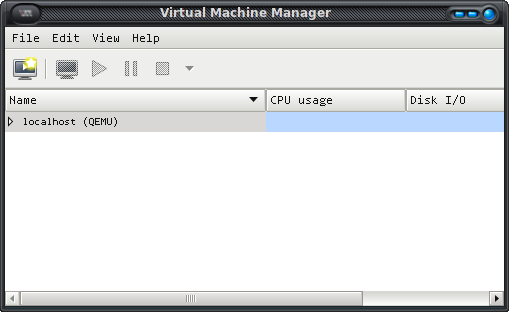
once connected, right-click your KVM connected host then choose Details menu
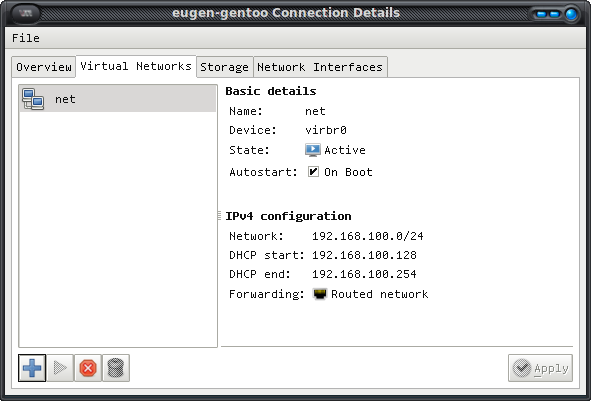
select "Virtual Networks" tab and add a new network with whatever name you want, with a address space like 192.168.100.0/24 (or whatever you like), with/without DHCP enabled, that is FORWARDING its connections to a physical device in the ROUTED mode.
Windows firewall rule
Login to your Windows then go to Control Panel > Windows Firewall. If it's turned on then go to Exceptions tab and new exception rule by clicking "Add port" button:
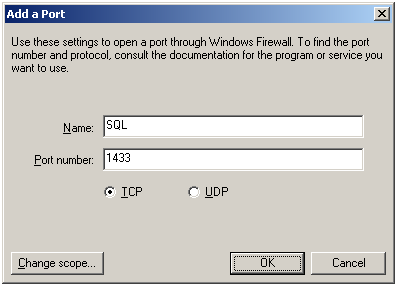
That should be sufficient to make it work.
Comments
No comments yet
Be the first to leave a comment.
Leave a comment